鼠須管加字

點擊鼠須管輸入法,setting 找到

  1. liur_customWords.dict.yaml
  2. liur.txt

liur_customWords.dict.yaml

重點 #字碼格式: 字 + Tab + 字碼

1
2
3
4
5
6
7
8
name: liur_customWords
version: "1"
sort: original	#按 字詞  排序 輸入original,以 字詞頻  排序 輸入 by_weight
#字碼格式: 字 + Tab + 字碼 (重點)
#人工編碼詞,適合超長句子,或包含數字的詞
我的gmail@gmail.com	gmail
...
自行定義

liur.txt

加上剛剛的單字

#字碼格式: 字 + Tab + 字碼 + Tab + 順序 (如果有多個會照順序)

1
我的gmail@gmail.com	gmail	1

修改完成後,再點擊鼠須管輸入法,deploy

Flutterflow Google Sign In 授權網域哪裡找

在FlutterFlow設定好登入畫面和action後,開啟 test mode, 打開瀏覽器的console, 點擊登入按鈕,會看到錯誤訊息,裡面會提到哪個網域需要加入授權網域
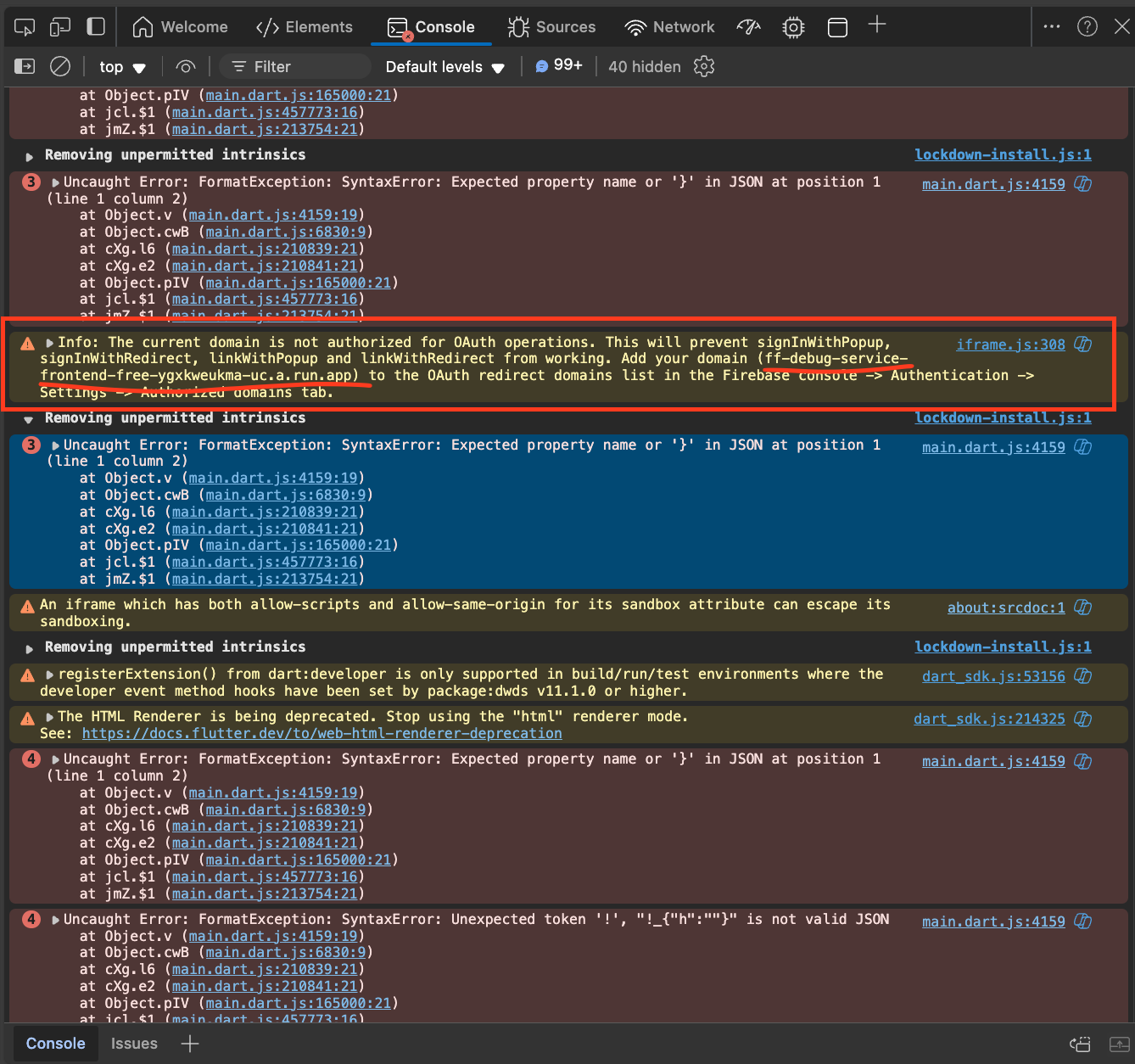
/flutterflow-google-sign-in/images/console.png

再到firebase專案設定 授權網域加入 GCP後台Oauth設定也需要加入

PNG TO WEBP

PNG TO WEBP

需先安裝fd, webp工具

1
brew install fd webp
1
fd -e png -x sh -c 'cwebp "$0" -o "${0%.png}.webp"' {} \;

刪除png檔案

1
fd -e png -x rm {}

TrueNAS Scale 配合mkcert達成https

Truenas版本 24.10

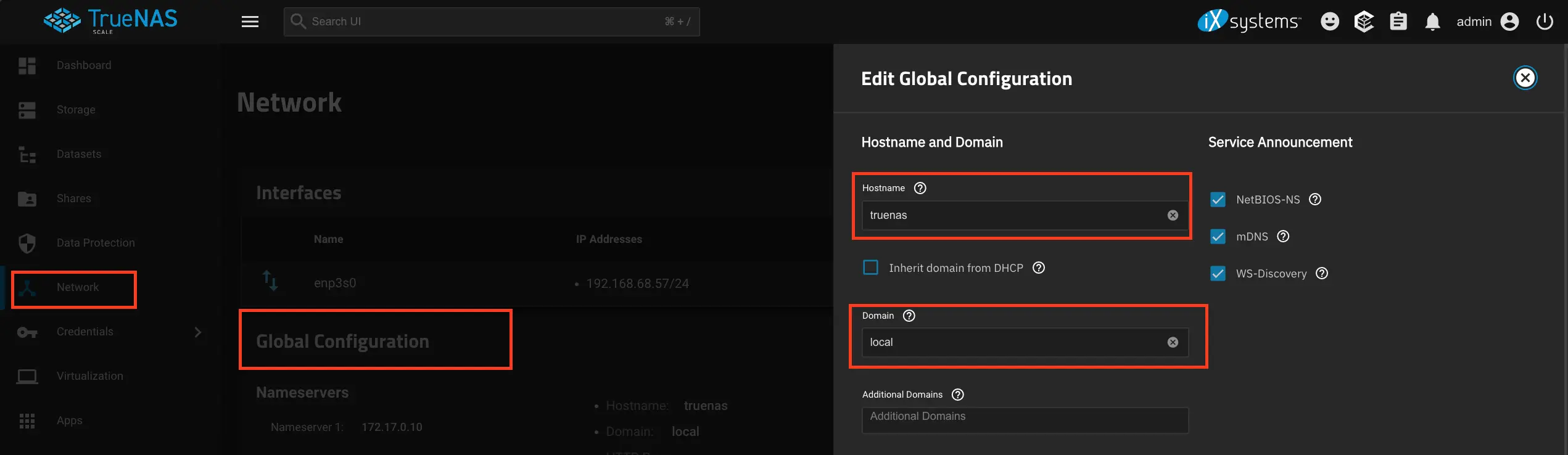
Network->Global Configuration->Setting

我是設定為truenas.local, 所以可以在瀏覽器上輸入https://truenas.local連到本地的truenas

field value
Host truenas
Domain local

/truenas-scale-mkcert/images/setup-host-domain.webp

使用mkcert產生自簽證書

1
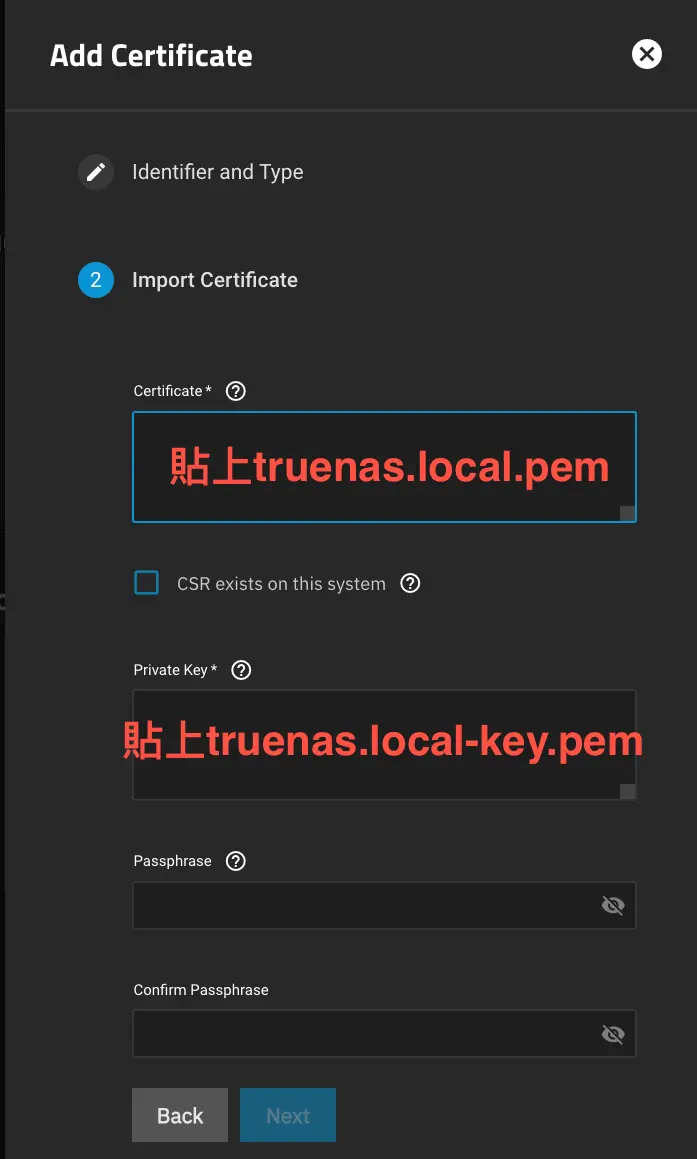
mkcert -cert-file truenas.local.pem -key-file truenas.local-key.pem "truenas.local"

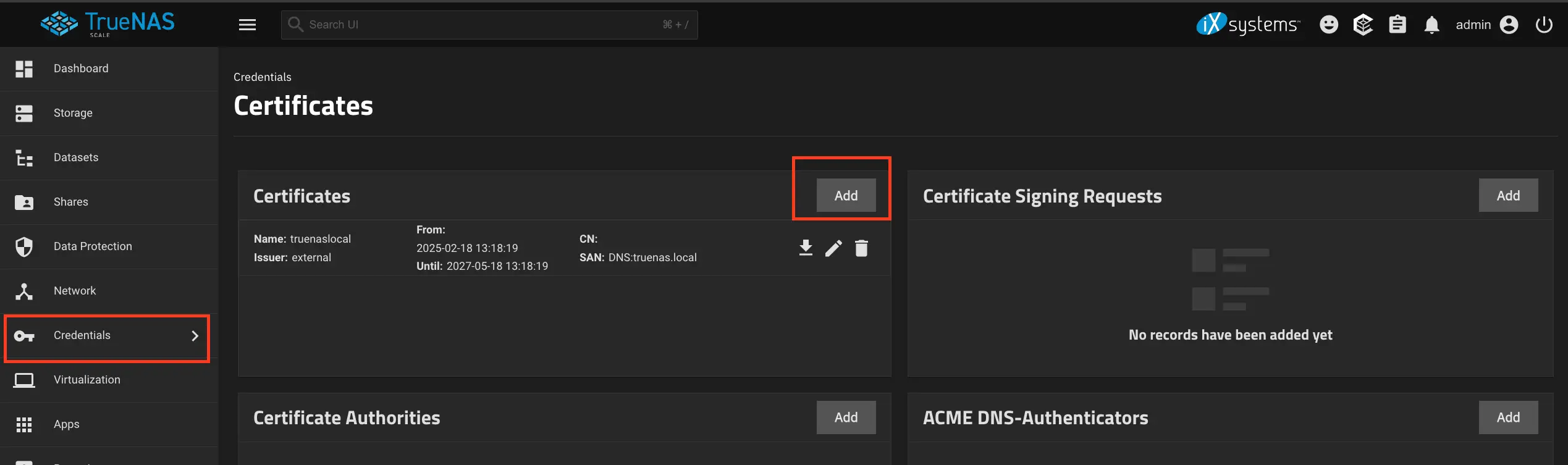
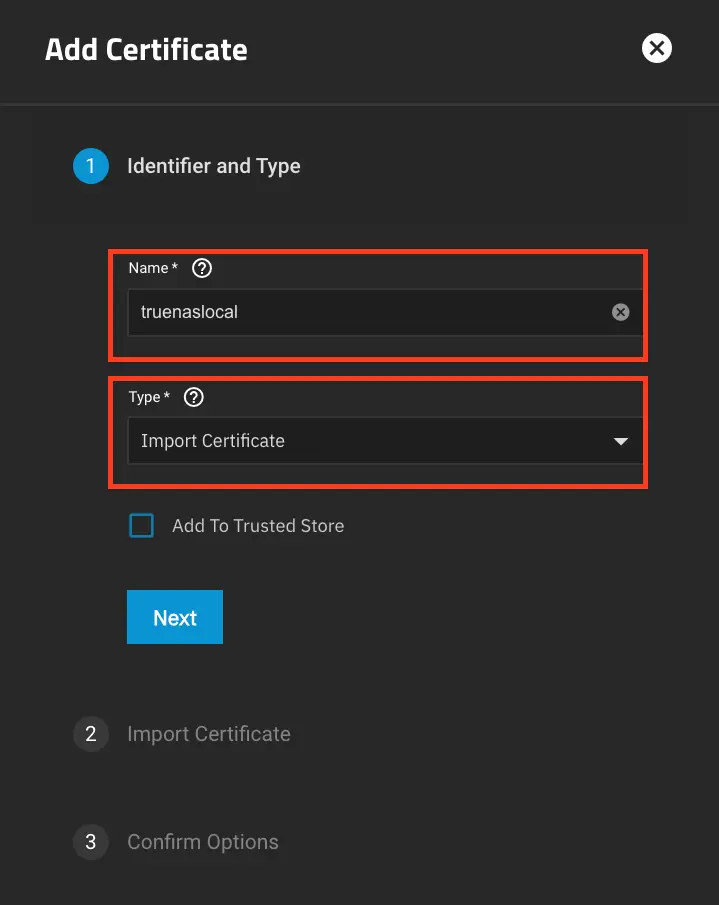
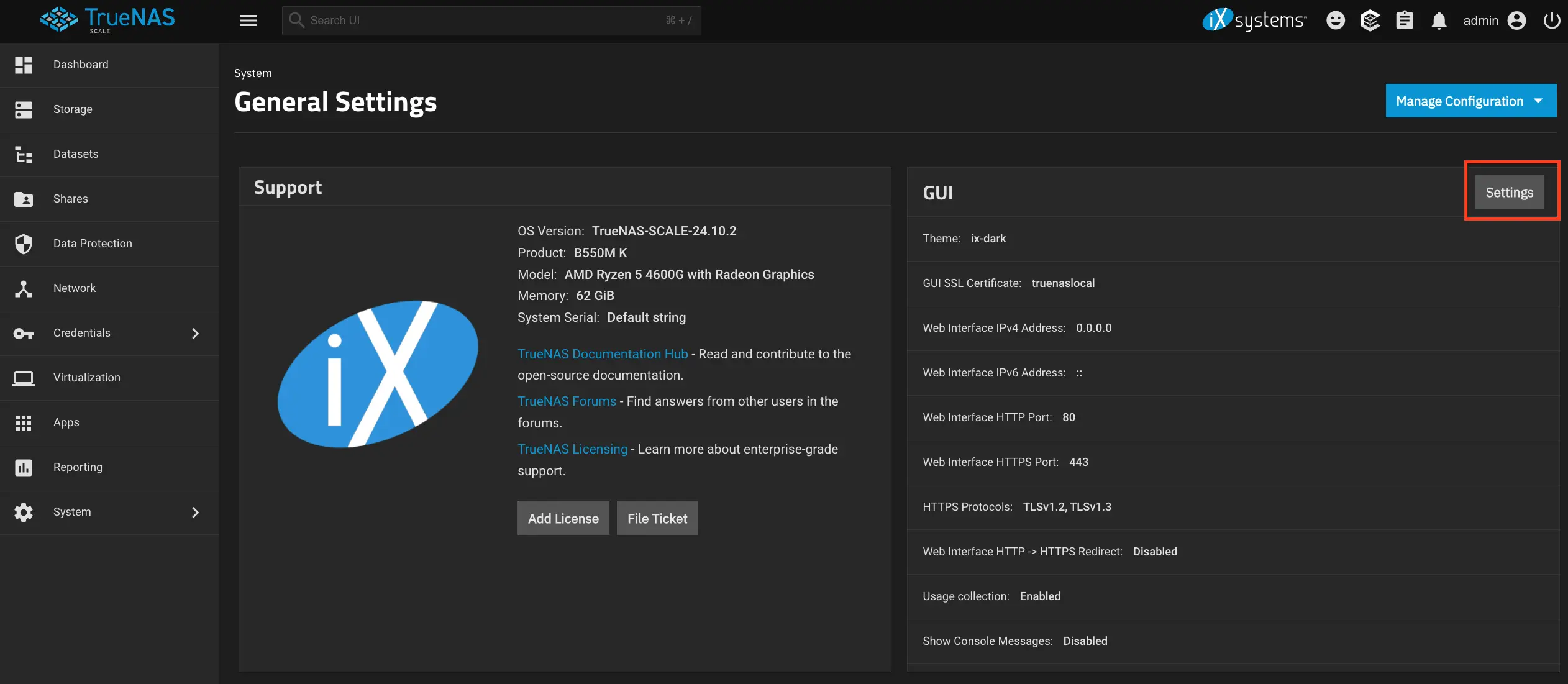
Certificates->Add

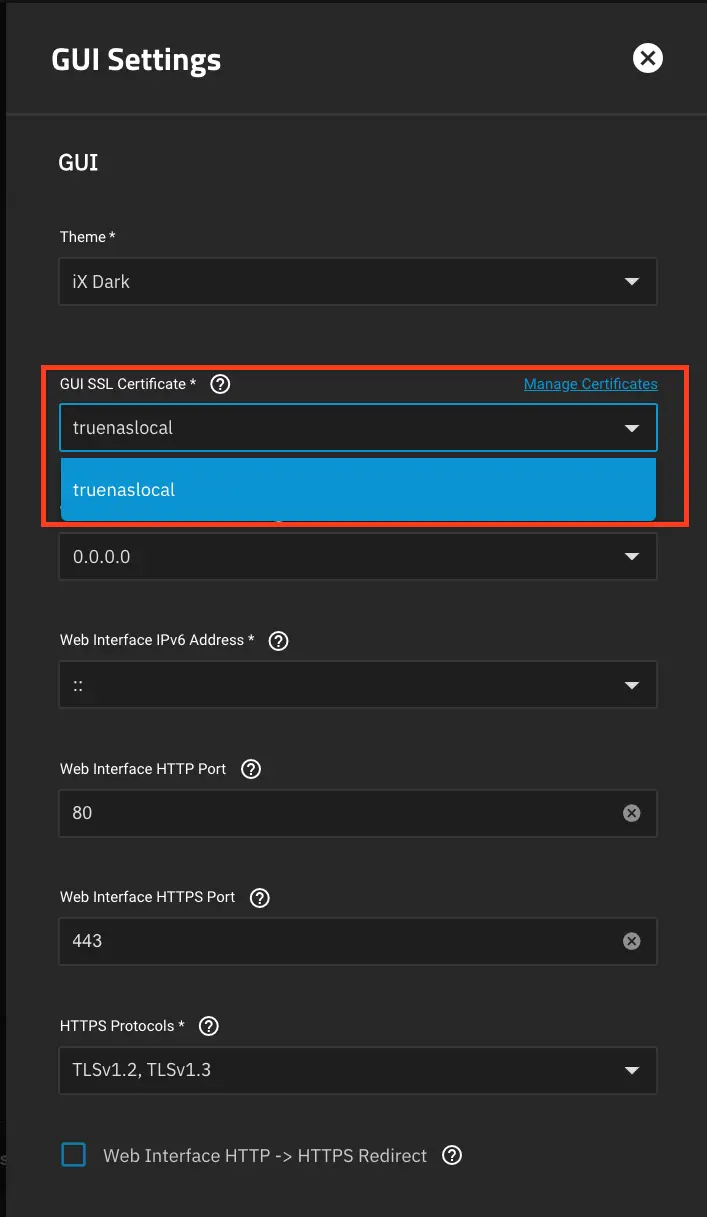
/truenas-scale-mkcert/images/certificates-add.webp /truenas-scale-mkcert/images/certificates-add-step-1.webp /truenas-scale-mkcert/images/certificates-add-step-2.webp /truenas-scale-mkcert/images/change-gui-cert.webp /truenas-scale-mkcert/images/change-gui-cert-step-1.webp

TrueNAS Scale Rustdesk 自架內網server

Truenas版本 24.04

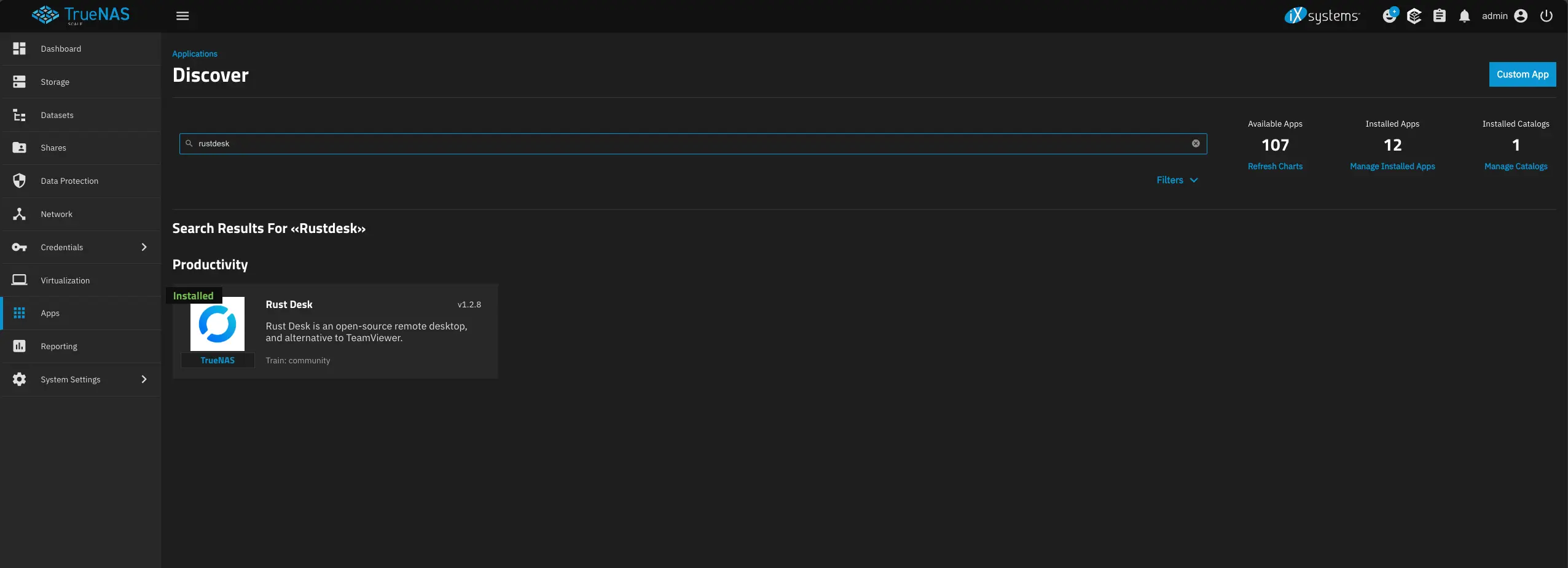
App->Application->Discover 找到rustdesk並安裝

/truenas-scale-rustdesk/images/chart-install.webp

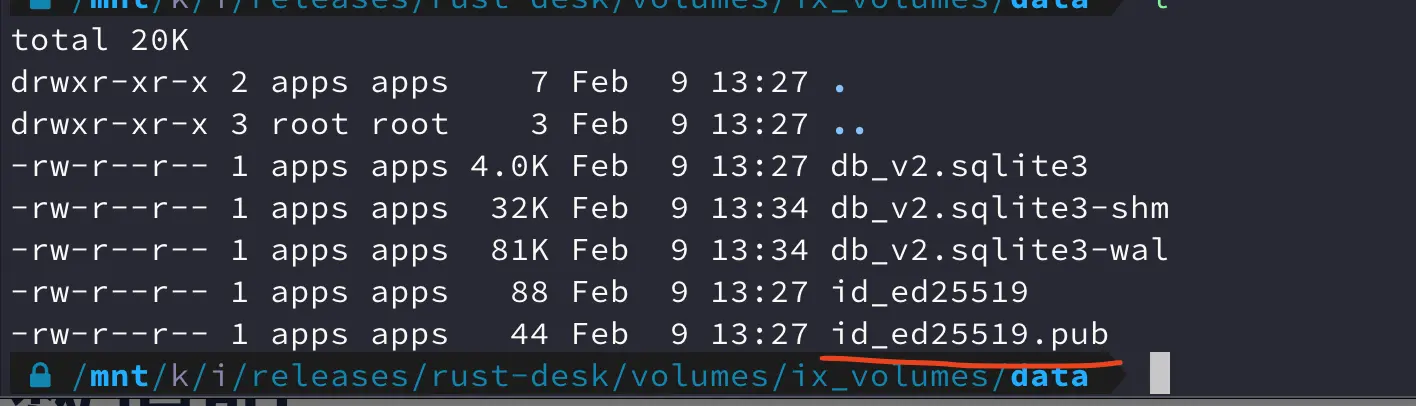
安裝完成後,ssh進入truenas 找到rustdesk的安裝位置取得公錀

/truenas-scale-rustdesk/images/get_pub_key.webp

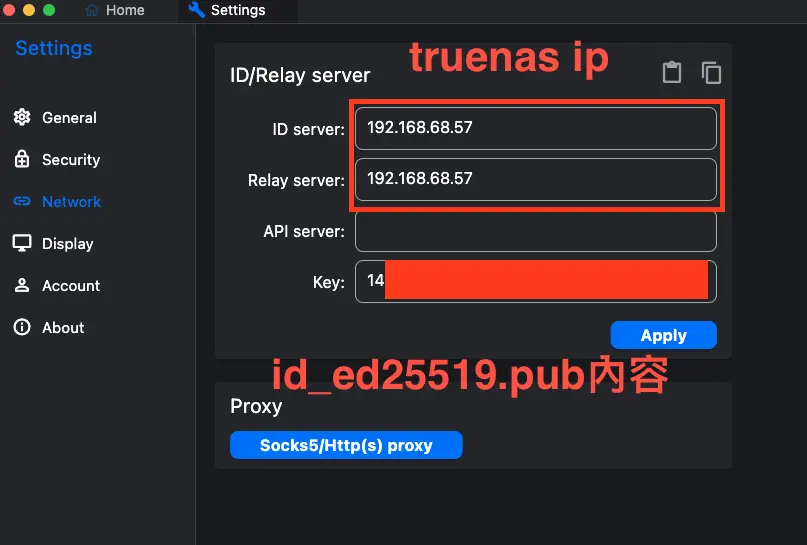
打開rustdesk client端, network設定加上內網的turenas ip, 公錀

/truenas-scale-rustdesk/images/rustdesk_server_setup.webp

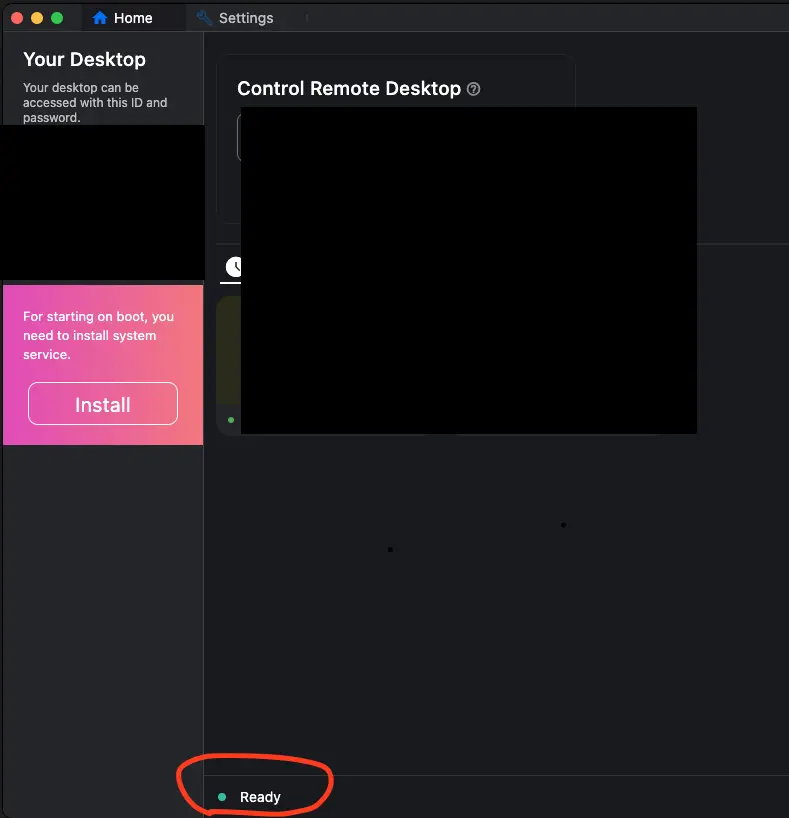
完成後,確認rustdesk client連線到truenas的server了

/truenas-scale-rustdesk/images/check_conn_ready.webp

nodejs ioredis cluster defineCommand筆記

一開始寫法

 1
 2
 3
 4
 5
 6
 7
 8
 9
10
11
12
13
14
15
16
17
18
19
20
21
// 一開始寫法 由ARGV帶進key name 會噴錯 ERR Script attempted to access a non local key in a cluster
const Redis = require('ioredis');
const ioredis = new Redis.Cluster([{
    port: 6379,
    host: 'localhost',
}]);

const luaScript = `
  local data = cjson.decode(ARGV[1])
  local key1 = data.key1
  local result = redis.call('SET', key1, data.value1)
  local key2 = data.key2
  local result = redis.call('SET', key2, data.value2)
`;

ioredis.defineCommand('fakeCommand', {
    numberOfKeys: 0,
    lua: luaScript,
});

const result = await ioredis.fakeCommand(JSON.strigify({key1: 'imFakeKey1', value1: 'imFakeValue1',key2: 'imFakeKey2', value2: 'imFakeValue2'}));

修正寫法

 1
 2
 3
 4
 5
 6
 7
 8
 9
10
11
12
13
14
15
16
17
18
19
20
21
22
const Redis = require('ioredis');
const ioredis = new Redis.Cluster([{
    port: 6379,
    host: 'localhost',
}]);

const luaScript = `
  local data = cjson.decode(ARGV[1])
  local key1 = KEY[1]
  local result = redis.call('SET', key1, data.value1)
  local key2 = KEY[2]
  local result = redis.call('SET', key2, data.value2)
`;

ioredis.defineCommand('fakeCommand', {
    numberOfKeys: 2, // 用到多少key就要帶入多少key數量 redis cluster才能知道
    lua: luaScript,
});

const data = { key1: 'imFakeKey1', value1: 'imFakeValue1', key2: 'imFakeKey2', value2: 'imFakeValue2' };

const result = await ioredis.fakeCommand(data.key1, data.key2, JSON.stringify(data));

參考資料 https://redis.io/docs/latest/commands/eval/